
List Products on Any Background
Online sellers: describe the product at 1K with transparent PNG for a listing cutout.
Try it on
- Sneakers
- Skincare
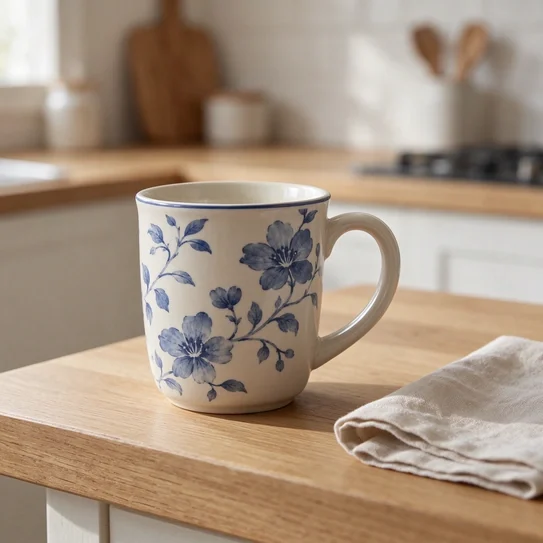
- Mugs
- Headphones
Three jobs where transparent output and repeat edits save a cleanup step.

Describe the product, choose PNG and a transparent background, and the image arrives with no backdrop. Drop it onto a banner or slide instead of masking it by hand.

Upload the last result as your reference and ask for one change, like a new sofa color or a warmer lamp. Each round builds on the previous image, so an approved layout keeps moving forward.

Add as many as 10 reference images, such as a product, a model and a location, and say how they should sit together. The model combines them into one frame in 16:9 or another of its eight ratios.
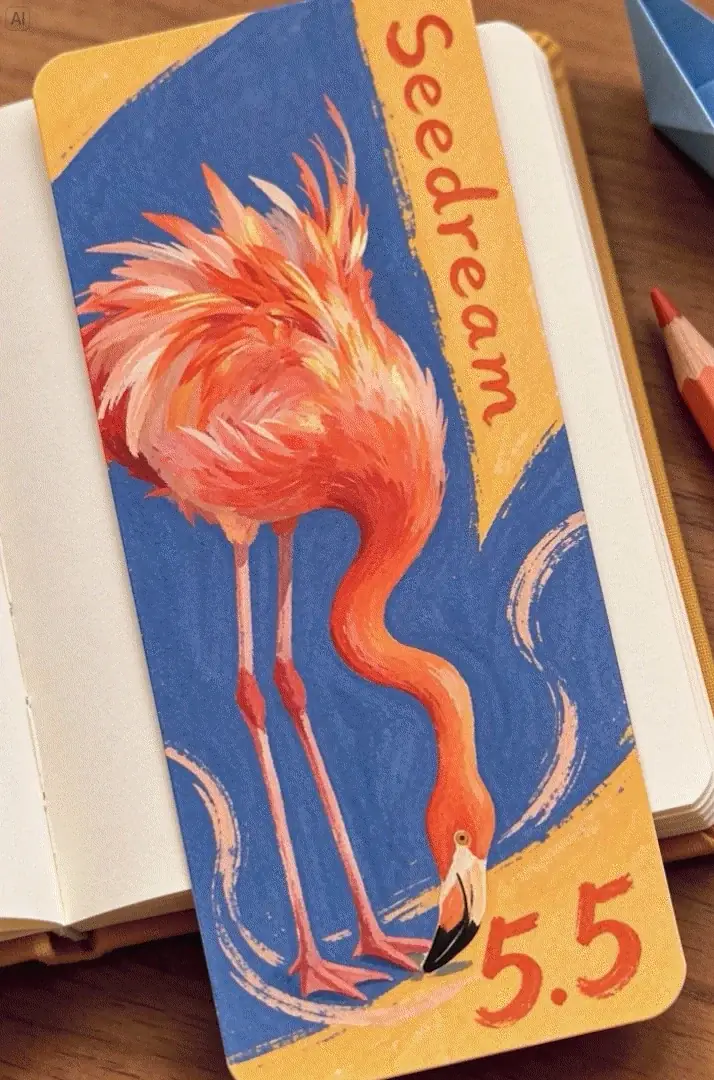
Seedream 5.5 is ByteDance's image model, and this page runs it in two modes. Text-to-image turns a written prompt (5,000 characters max) into a picture at 1K, 1.5K or 2K. Image edit takes your instruction with up to 10 reference images, then returns a changed version. Files come out as PNG or JPEG, and the background can be auto, transparent or opaque; transparent needs PNG. ByteDance's Seed team names three strengths: native transparent and semi-transparent backgrounds, multi-round editing, and natural lighting, materials and skin. This page is built around the first two jobs: clean cutouts and designs you revise step by step.
Each tab covers one capability of the model on this page.
Describe subject, setting, light and any words on the image; the prompt alone is enough.
Up to 5,000 characters
Long briefs fit in one prompt.
1K, 1.5K or 2K
Pick the size per run.
Eight ratios
Square, portrait or widescreen.
Six capabilities in this page's generator.
Cover square posts, portrait pins, slides and widescreen banners from one prompt.
Choose 1K, 1.5K or 2K depending on where the image will appear.
Native transparent and semi-transparent output, saved as PNG.
Combine products, people and locations in a single edit request.
Upload your most recent image and ask for the next change.
PNG for cutouts and layered layouts, JPEG for ordinary photos.
Commercial use is included on the Business plan.
Online sellers: describe the product at 1K with transparent PNG for a listing cutout.

Sticker designers: pick 1.5K and transparent PNG for sticker-sheet artwork.

Poster designers: upload three photos and a layout note at 16:9.

Home stagers: add one furniture piece to a room photo at 4:3, then repeat.

Social managers: run one prompt at 1:1, 9:16 and 16:9 for a matching set.

Illustrators: upload a character and describe a new outfit at 3:4.
Sign in first; generating needs an account.
Write what you want, or switch to image edit and upload one to ten reference images.
Choose a ratio, 1K, 1.5K or 2K, PNG or JPEG, and an auto, transparent or opaque background.
Run it, check edges and details, then feed the image back for another edit.
Inputs, transparency, editing rounds and plan access.
Seedream 5.5 is available right here once you sign in. Input is a text prompt or, for an edit, a prompt with up to 10 reference images. Output is an image at 1K, 1.5K or 2K in one of eight aspect ratios, saved as PNG or JPEG.
A transparent background is possible only in PNG, because JPEG has no way to store it. Pick PNG first, then set the background to transparent; with JPEG selected, that option is switched off. Preview the cutout over a dark and a light fill to catch stray edges.
Seedream 5.5 edits work round by round from whatever image you upload. Add your most recent result as the reference, describe a single change and generate, then repeat with each new version. ByteDance built the model for multi-round editing; still, compare each version with the last before moving on.
Seedream 5.5 accepts one to ten reference images per edit. Use one for a straight revision and several for a composite, such as a product, a model and a backdrop. Say in the prompt what each image contributes so the roles stay clear.
Seedream 5.5 pricing depends on mode, size and image count. A prompt-only picture is 4 credits at 1K or 1.5K, or 7 at 2K. Edits scale with uploads: one image is 6 credits at 1K (8 at 2K), two are 7 and ten are 18. Your sign-up gift is 10 credits for 30 days, once signed in. That buys two prompt-only pictures at 1K or 1.5K, or one single-image 1K edit; a multi-image edit may cost more than 10.
Seedream Pro reserves 2K for paid plans, so 2K needs Basic, while 1K and 1.5K stay on the free plan. Seedream 5.5 can't go above 2K on this page; there is no larger output option. If 1.5K fits your layout, you can stay on free.
Run the same idea on another version or model.
The earlier Pro release, for checking a prompt on a second Seedream version.
Covers the Seedream 5.0 family if you want the previous generation.
The Lite edition of 5.0, another option for testing the same brief.
A different image model with extra-wide and tall ratios such as 8:1 and 1:8.

Seedream 5.5: Transparent PNGs and Image Edits
Seedream 5.5 works from a text prompt or from up to 10 reference images. Pick one of eight aspect ratios and an auto, transparent or opaque background; 1K and 1.5K are on the free plan, 2K needs Basic.
0 / 5000